 AI
AI  Analytics
  Cloud
Cloud  Office
  Stock
Stock  Disk
Disk  Dev
Dev  Forms
Forms  Crypto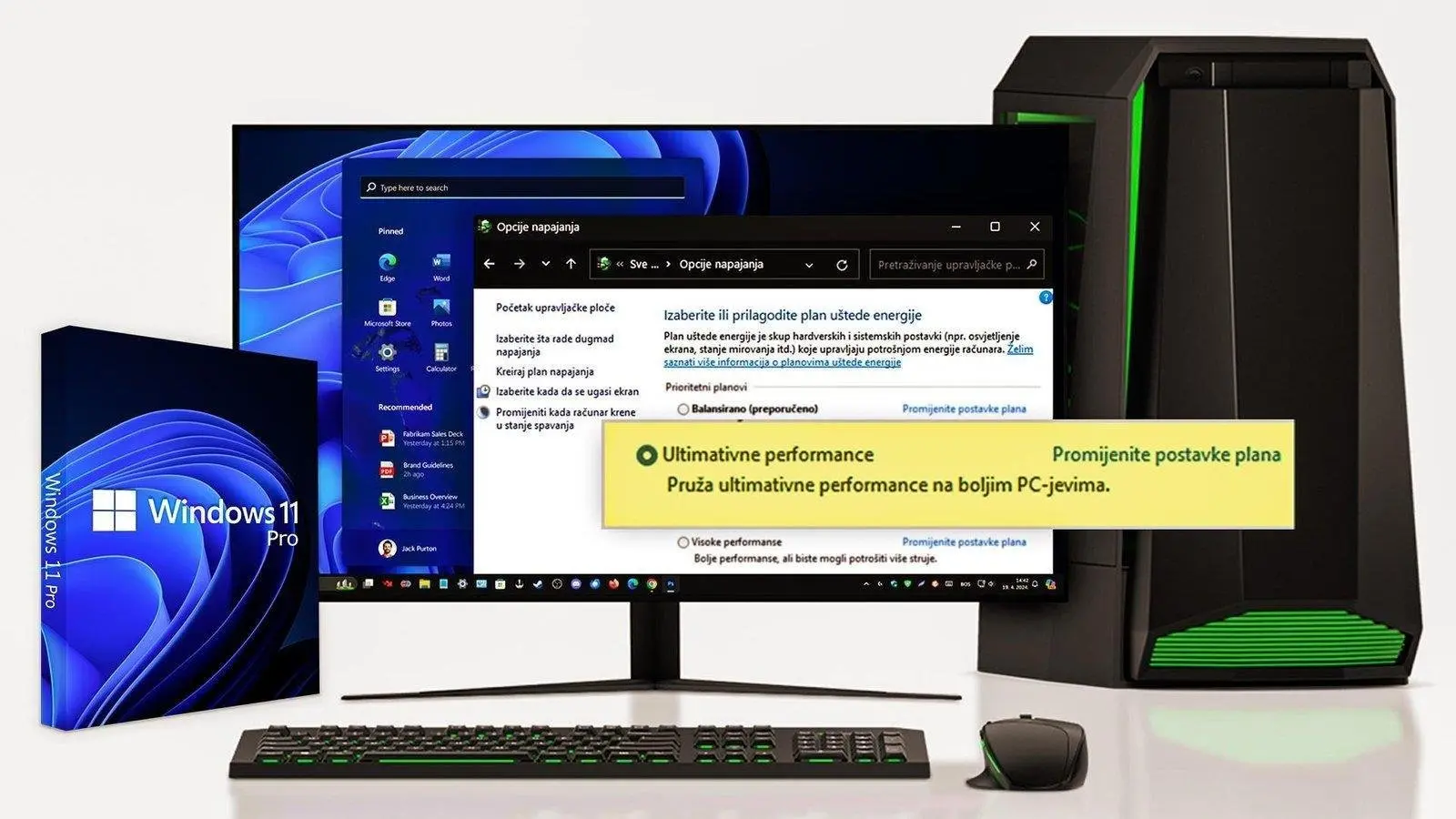
What is the Ultimate Performance Power Plan?
The Ultimate Performance power plan is a specialized power profile designed to maximize performance on high-powered systems such as workstations and servers. It eliminates micro-latencies associated with fine-grained power management techniques, ensuring your hardware operates at peak efficiency.
How It Works
Micro-latencies are small delays between when the operating system recognizes that a hardware component needs power and when it actually delivers that power. The Ultimate Performance plan eliminates these delays by disabling certain power management features that can throttle performance.
Key Features of Ultimate Performance Mode
CPU Optimization
The Ultimate Performance power plan sets both minimum and maximum CPU state to 100%. This means your processor always operates at full power, even during periods of low utilization. While this consumes more energy, it ensures zero delay in processing tasks.
Storage Optimization
This plan prevents hard drives from spinning down during idle periods, ensuring immediate data access. For systems with SSDs, it optimizes NVME and SATA controllers for maximum throughput.
Additional Optimizations:
- Screen dimming: Prevents automatic dimming during idle periods
- USB Power Management: Keeps USB devices at full power
- PCI Express Link State Management: Disables power-saving features
- Processor Performance Boost: Enables aggressive turbo boost behavior
Who Should Use Ultimate Performance Mode?
This power plan is ideal for:
- Professional content creators (video editing, 3D rendering)
- Data scientists running complex computations
- Competitive gamers seeking every performance advantage
- Developers compiling large codebases
- Workstation users with demanding applications
Important Note: Laptops should avoid this mode as it significantly reduces battery life and increases heat generation.
How to Enable Ultimate Performance (Windows 11 Native)
For systems with native Ultimate Performance support:
- Press Windows + R and type
control panel - Navigate to Hardware and Sound
- Select Power Options
- Click Show additional plans if needed
- Select Ultimate Performance
How to Add Ultimate Performance to Any Windows 10/11 PC
Method 1: Using PowerShell (Recommended)
- Right-click Start menu and select Windows PowerShell (Admin)
- Click Yes on the UAC prompt
- Copy and paste this command:
powercfg -duplicatescheme e9a42b02-d5df-448d-aa00-03f14749eb61- Press Enter to execute
- Open Control Panel > Power Options
- Click Show additional plans
- Select Ultimate Performance
Method 2: Using Command Prompt
The same command works in Command Prompt (Admin):
- Search for cmd in Start menu
- Right-click and select Run as administrator
- Execute the powercfg command above
- Access Power Options to enable the new plan
Customizing Ultimate Performance Settings
While not recommended for most users, you can customize the plan:
- Go to Power Options
- Click Change plan settings next to Ultimate Performance
- Click Change advanced power settings
- Adjust specific settings as needed
Key Settings to Consider:
- Display turn off: Never (or as needed)
- Sleep after: Never
- Minimum processor state: 100%
- Maximum processor state: 100%
- Cooling policy: Active
Performance Impact and Considerations
Benefits:
- Reduced system latency
- Faster application response times
- Improved rendering and compilation speeds
- Better gaming performance
- Optimized for sustained workloads
Drawbacks:
- Increased power consumption (30-50% higher)
- Higher system temperatures
- Increased fan noise
- Reduced hardware lifespan (minimal with proper cooling)
- Not suitable for battery-powered devices
Monitoring System Performance
After enabling Ultimate Performance, monitor your system:
- Use HWiNFO64 or HWMonitor for temperature monitoring
- Check CPU/GPU temperatures regularly
- Ensure adequate cooling is present
- Monitor power consumption if concerned about energy costs
Frequently Asked Questions
Does Ultimate Performance damage my PC?
No, as long as your cooling solution is adequate. Modern CPUs have built-in thermal protection.
Should I use this for gaming?
For desktop gaming PCs with proper cooling, yes. For laptops, High Performance mode is usually sufficient.
Can I switch between power plans?
Yes, you can switch between power plans anytime without issue. Choose based on your current workload.
Does this work on Windows 10?
Yes, the same methods work for both Windows 10 and Windows 11.
The Ultimate Performance power plan is a powerful tool for maximizing system performance on high-end desktops and workstations. While it increases power consumption and heat generation, the performance benefits are significant for demanding workloads. Use it wisely and ensure proper system cooling.

Leave a comment
Your email address will not be published. Required fields are marked *