
 AI
AI  Analytics
  Cloud
Cloud  Office
  Stock
Stock  Disk
Disk  Dev
Dev  Forms
Forms  Crypto
Why Settle for Only One OS?
The notion that you must abandon one operating system in favor of the other is outdated. Instead, dual-booting enables you to enjoy the best of both OS worlds, switching seamlessly between Windows and Linux as your needs dictate.
A thoughtfully configured dual-boot system brings together the unique strengths, gaming prowess, and professional tools of Windows with the development, security, and customization features inherent in Linux. This article dives deeply into why dual-booting is superior to relying on a single operating system—including a thorough, detailed guide to safely set up your own Windows-Linux dual-boot environment.

Why Both Windows and Linux Belong on Your PC
1. The Power of Choice: No More Either/Or
Dual-booting means that at startup, you’re presented with a menu: boot into Windows for gaming, proprietary apps, or work, or choose Linux for programming, privacy, or resource-hungry tasks. This flexibility is not merely about preference—it’s about using the right tool for the job every time.
2. Unmatched Compatibility: Every App and Game, Always Accessible
While Linux has made remarkable progress in supporting games and applications, it still lags behind Windows in certain areas—especially high-end gaming, Adobe Creative Suite applications, and some engineering or proprietary business tools. Dual-booting provides access to all software ecosystems:
- Gaming: Play the latest AAA titles with robust driver and anti-cheat support on Windows; run retro or niche open-source games on Linux.1
- Productivity and Creativity: Use Microsoft Office, Adobe CC, and other commercial products natively on Windows. Turn to Linux for advanced open-source applications and specialized developer tools.
3. Superior Performance vs. Virtualization or WSL
While virtualization (VirtualBox, VMWare) and the Windows Subsystem for Linux (WSL) are impressive technologies, running an OS natively always provides better performance. Virtual machines introduce overhead, making them suboptimal for demanding tasks like gaming, computation-heavy development, or hardware-intensive applications:
- Native hardware access ensures your OS takes full advantage of graphics cards, fast storage, and specialized peripherals.
- Resource conservation: No need to run two operating systems concurrently, saving precious RAM and CPU cycles.
4. Security and Privacy: Linux as a Safe Zone, Windows for Everything Else
Linux’s security philosophy—permissions, minimal background services, and a strong open-source development process—makes it a safer choice for browsing, banking, and handling sensitive data. Meanwhile, keeping Windows available allows you to run applications that lack Linux equivalents without compromising your privacy-focused workflow.
5. Keeping Old Hardware Relevant and Productive
Got legacy hardware that struggles with the bloat of modern Windows? Boot into Linux for a lightning-fast, responsive experience on older machines, yet retain Windows access for those few must-have apps that only work on Microsoft’s OS.
6. Learning, Experimentation, and Recovery Made Easy
Dual-boot setups are invaluable for IT professionals, students, developers, and experimenters:
- Low-risk experimentation: Tinker with Linux without jeopardizing your Windows installation.
- Boot rescue: If one system fails, the other provides a lifeline for troubleshooting and data recovery.
7. File Sharing and Cross-Platform Projects
With a properly configured shared partition or networked shares, you can easily transfer files, sync code, and collaborate across both environments—ideal for professionals and hobbyists who need interoperability.
Why You Still Need Microsoft’s Ecosystem
Despite recent advances in Linux, Windows remains the standalone leader in certain domains:
- Best-in-class Gaming: DirectX 12 Ultimate, Game Mode, Auto HDR, and the broadest anti-cheat, hardware, and driver support mean Windows is still the premier gaming platform.
- Guaranteed Third-Party Software and Driver Compatibility: Most peripherals, printers, and commercial software come with guaranteed support for Windows.
- Enterprise, Office, and Creative Workflows: Microsoft Office, Adobe Creative Cloud, and countless business, educational, and niche applications are most reliable when run natively on Windows.
- Universality and User Familiarity: Windows is everywhere—sharing workflows, collaborating with others, support, and finding documentation are easier in many mainstream scenarios.
Linux Strengths and What Makes It Worth Booting?
Not to be outshined, Linux brings unique advantages to the table:
- Customizability: Choose from hundreds of desktop environments, window managers, and settings—tweak almost everything, from appearance to kernel parameters.
- Open-Source Transparency and Security: Code is auditable; security flaws are patched quickly by a global community. Privilege separation, strong firewalls, and solid permissions models are standard.
- Ideal for Programming and IT: Native support for Bash, SSH, compilers, containers (Docker, LXC), and all major development environments.
- Superb for Networking and Servers: Linux dominates the web/server market for good reason—stability and performance at scale.
- Resource Efficiency: Run blazingly fast on old or budget hardware, delaying the need for costly upgrades.
- Privacy: No telemetry, mandatory registration, or adware (unless you choose it).
- Cost: Free to install, use, and keep updated.
When Dual-Boot Shines
| Scenario | Benefit of Dual Booting |
| PC Gamer + Developer | High performance gaming on Windows; develop code on Linux |
| IT Professional | Troubleshoot Windows issues from Linux; run security tools |
| Creative Pro (Photoshop, Video, Audio) | Use proprietary apps (Windows); access FOSS video tools (Linux) |
| Student or Experimenter | Learn Linux without risking your Windows install |
| Legacy Hardware Owner | Revitalize old laptops/PCs with Linux but keep Windows |
| Security-Critical Work | Use Linux for banking; Windows for internet-required software |
By switching between OSes at boot, you avoid compromises and frustrations inherent in making one OS do it all.
How Dual-Booting Works
At its core, dual-booting involves:
- Partitioning your disk to provide dedicated space for each OS.
- Installing both Windows and Linux on separate partitions (or drives).
- Using a bootloader (usually GRUB) to present a menu at startup for OS selection.
Each OS runs natively on your hardware, without the overhead of emulation or virtualization, and each is isolated from the other except in shared data or explicitly configured partitions.
Recommended Linux Distributions for Dual Booting
While almost any Linux distro can technically dual-boot with Windows, beginners and most users will benefit from those designed with ease-of-use, hardware support, and a sizeable community in mind:
Excellent Beginner Choices
- Ubuntu (and flavors like Ubuntu Mate, Xubuntu, Kubuntu)
Well-supported, easy installer, great for new users. - Linux Mint
Windows-like interface, very forgiving, robust support. - Zorin OS
Particularly welcomes Windows switchers with familiar layouts. - Pop!_OS
Especially good for developers and gamers; comes with GPU drivers out of the box. - Fedora Workstation
Focused on open-source, up-to-date, and robust security.
More advanced users (or those desiring specific features) may gravitate toward Arch Linux, openSUSE, or Debian—see community documentation for dual-boot instructions.
Security Considerations in Dual Boot
1. Keep Your Partition Boundaries Clear
Never share OS system partitions. User data (documents, downloads) can be shared, but system files should not.
2. Filesystem Choices: Keep It Safe
- Windows partitions: NTFS or exFAT (Linux can read/write both).
- Linux partitions: EXT4, Btrfs, or XFS (Windows cannot natively read these; third-party tools required).
- Shared partition: Format as NTFS for the best compatibility.
Beware: BitLocker encryption, Secure Boot, and Fast Startup in Windows can complicate dual-booting. These features often need to be temporarily disabled during initial setup to prevent access problems.
3. Encryption
For maximum security:
- Use BitLocker on the Windows partition and LUKS/dm-crypt on Linux.
- Modern installers (as of Ubuntu 24.04+) now allow you to encrypt your Linux partition effortlessly, even in a dual-boot scheme.
Remember: If you encrypt your main OS partition, keep recovery keys handy.
Dual-Boot vs. Virtualization and WSL
Virtual machines (e.g., VirtualBox/Vmware):
- Pros: No reboot needed; run both OSes simultaneously.
- Cons: Lower performance; limited hardware compatibility; not suitable for gaming/graphics-intensive tasks. Virtualization is ideal for testing and light workloads, but not as a true replacement for native performance or full hardware access81824762511.
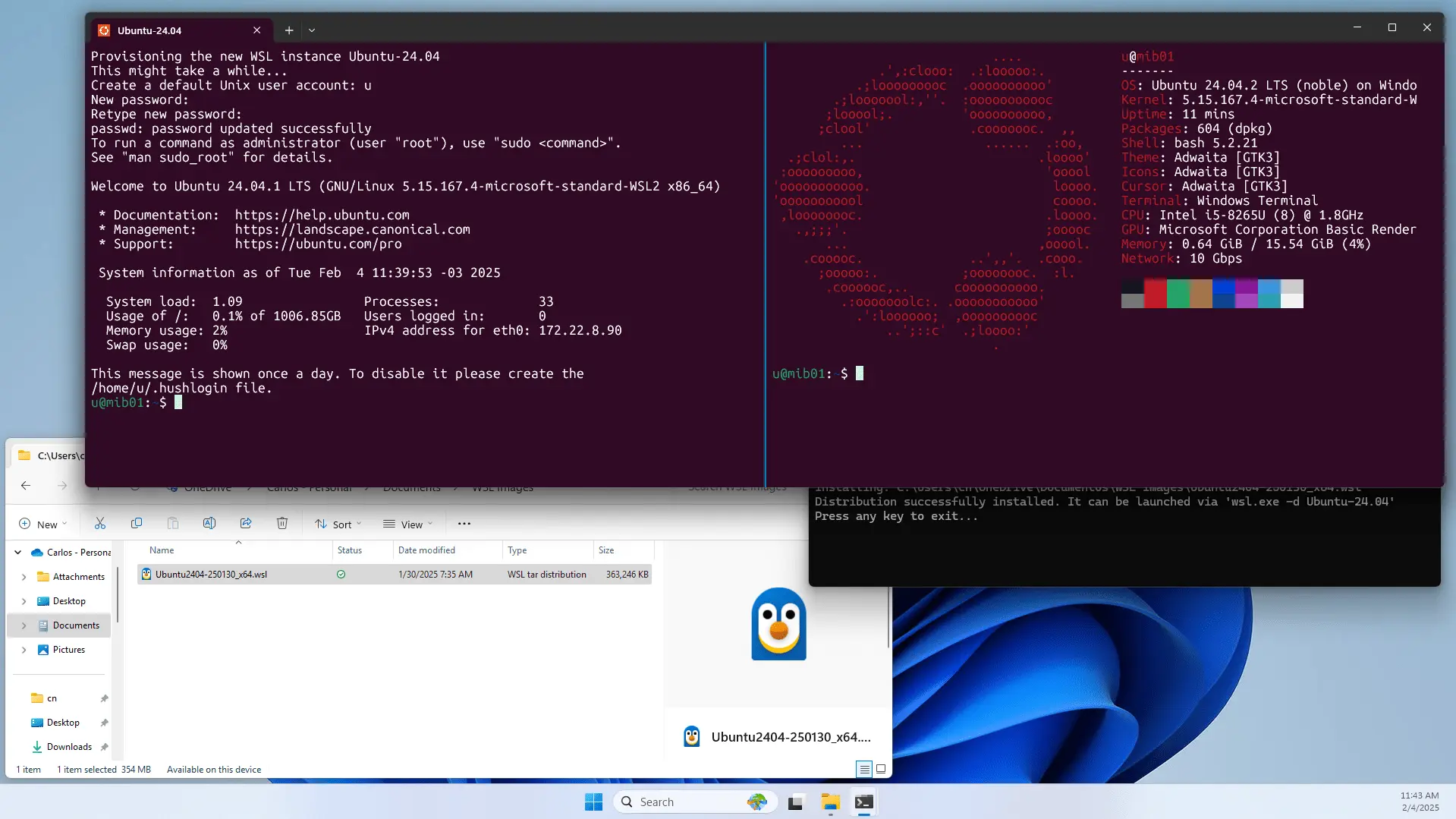
Windows Subsystem for Linux (WSL & WSL2):
- Pros: Easy Linux CLI on Windows; good for web/development; low overhead.
- Cons: No real Linux desktop; doesn’t support all Linux features; not suitable for gaming, advanced drivers, or power users76.
A proper dual-boot delivers native speeds and hardware support for both OSes, making it optimal for anything but the most casual user or developer with very simple needs.
Step-By-Step: Installing a Dual-Boot System (Windows & Linux)
Below is a detailed, expert-verified guide for setting up a secure, flexible dual-boot environment. We use Ubuntu as an example, but the process is virtually identical for Mint, Zorin OS, etc.
1. Prepare Your Hardware and Backup!
- Back up all important data on your PC! Resizing partitions and new OS installs always carry some risk1011.
- Ensure your PC supports UEFI (common on new machines); older systems use BIOS/MBR. For UEFI, disks should be in GPT format262719.
2. Prepare the Windows Partition
- If Windows is already installed and using the entire drive, shrink the main partition:
- Windows 10/11: Use “Disk Management” (diskmgmt.msc) to shrink the C: partition and free up space for Linux (40–100 GB recommended)102811.
- Turn off BitLocker encryption on Windows (temporarily); note your recovery key if used.
- Disable Fast Startup in Windows, as it locks the drive and can prevent Linux from accessing its partition:
- Go to Control Panel → Power Options → Choose what the power buttons do → uncheck “Turn on fast startup”.
3. Configure BIOS/UEFI Settings
- Set Firmware to UEFI mode (not Legacy/CSM) for modern installs.
- Disable Secure Boot (unless your distro—like Ubuntu or Fedora—supports it, which most do now).
- Check Boot Priority: Make sure the system will boot from USB during install, and later, let GRUB be first for OS selection31271925.
4. Create a Bootable Linux USB Drive
- Download your desired Linux ISO (e.g., Ubuntu, Mint) from the official website.
- Use Rufus (on Windows) or BalenaEtcher (cross-platform) to write the ISO to a USB drive (8GB minimum recommended):
- Open Rufus, select your USB stick, pick the ISO, choose 'GPT partition scheme for UEFI', and start. All data on the stick will be erased!
5. Install Linux
- Boot your PC from the USB stick.
- Select “Try” or “Install” Linux (try first to verify all hardware is detected: WiFi, graphics, touchpad, etc).
- Go through language/keyboard setup screens.
- When prompted for installation type, choose “Install Ubuntu (or Mint, etc) alongside Windows Boot Manager”. This is the safest, easiest option for most users; the installer will auto-shrink and partition the drive84352036.
- If installer does not find Windows, make sure Secure Boot is off, BIOS is in UEFI mode, and Windows was powered down, not hibernated.
- If you prefer, the “Something else” (manual) partitioner lets you custom-allocate and specify mount points (advanced users only).
- EFI Partition: Let Linux use the existing ESP (do not format!)—set its mount point as /boot/efi.
- Set Root (/) partition (20GB min), optionally create separate /home for user files, and a swap partition if you have less RAM.
- Continue with timezone, username, password settings.
6. Install GRUB Bootloader
- The installer will detect your Windows install and place GRUB in the EFI partition.
- On restart, you should see a GRUB menu, letting you select Linux (default, if not changed) or Windows Boot Manager at startup.
7. First Boot and Post-Install Checks
- Boot into both operating systems to ensure both start up properly.
- If Linux doesn’t appear in boot menu: Check BIOS boot order and move “Ubuntu” above “Windows Boot Manager”.
- If Windows isn’t in GRUB: Boot Linux and run:
sudo update-grub
If still missing, check Windows was not left hibernated. - Consider installing GRUB Customizer on Linux to personalize boot menu and default OS.
8. File Sharing Between Systems
- NTFS Partition: Use a shared NTFS partition for cross-OS file exchange. Linux can read/write NTFS natively; Windows cannot access Linux’s ext4 partitions without third-party tools.
- Create a “Shared” partition using Disk Management or GParted, format as NTFS, and mount in both OSes121314.
- Alternatively, use cloud services, a NAS, or external drives for sharing files.
9. Troubleshooting Tips
Common Issues & Solutions Table
| Symptom | Cause/Notes | Solution |
| No GRUB menu, boots straight to Windows | Boot order/WINDOWS overwrote GRUB | Change boot priority in BIOS; run sudo update-grub in Linux; use Boot-Repair |
| Windows not detected in GRUB | Windows hibernated/Fast Startup still on | Disable Fast Startup; boot to Linux, sudo update-grub |
| Time incorrect after switching OS | Windows and Linux treat hardware clock differently | Set both to use UTC or adjust Linux with sudo timedatectl set-local-rtc 1 |
| Windows/Boot Recovers, Linux Menu Missing | Windows upgrade overwrote GRUB | Repair with Ubuntu live USB and re-install GRUB (boot-repair tool)40 |
Advanced Troubleshooting:
For major boot problems, use a live USB and tools like Boot-Repair, or repair GRUB via terminal (see this guide).
Advanced: Secure and Encrypted Dual Boot (for Power Users)
- Ubuntu 24.04+ and 25.04+ GUI installers now allow you to encrypt your Linux partition with LUKS even in a dual-boot setup. Windows can later be encrypted using BitLocker.
- Best Practice:
- Turn off BitLocker during Linux install; after success, re-enable it in Windows and confirm you know the recovery key (critical).
- Keep /boot and /boot/efi unencrypted so the system can load GRUB and Linux kernel.
- For full custom encrypted schemes, consult advanced guides—incorrect setup may block access to either OS!
The Dual-Boot Setup: At a Glance
| Step | Key Action | Tool/Comment |
| Backup all important files on Windows and external drives | Built-in backup, cloud |
| Shrink C:\ partition, disable BitLocker/Fast Startup, update BIOS | Disk Management |
| Use Rufus/Etcher to flash distro ISO onto USB drive | Rufus/Etcher |
| Boot USB, choose “Install alongside Windows Boot Manager” | Linux installer |
| Let Linux installer place GRUB in UEFI ESP (don’t format ESP!) | Installer, GRUB |
| Boot both OSes, check boot menu, fix order as needed | BIOS, update-grub |
| Create ‘Shared’ NTFS partition for cross-OS file access | GParted, DiskMgmt |
| Adjust GRUB defaults, update drivers, install required software | GRUB Customizer |
Security, Maintenance, and Best Practices
- Keep Both Systems Updated: Regularly install system and security updates on both Windows and Linux.
- Backup Regularly: Even with dual-boot redundancy, always keep external or cloud backups.
- Limit Administrative Changes: Avoid formatting, resizing, or altering partitions (especially ESP, /boot, and Windows partitions) unless you fully understand the consequences.
- Keep Recovery Media Hand: Have your installation USBs and passwords/recovery keys safe.
- File System Hygiene: Always shut down each OS properly to avoid leaving partitions in a hibernated or “unclean” state, which can block access from the other OS.
Don’t Choose—Combine!
The dual-boot setup is the solution anytime you want both full access to the worlds of Windows and Linux. Whether you’re a gamer, developer, power user, or someone who simply wants maximum flexibility, dual-booting delivers native speeds, compatibility, and choice—without compromise.
While VMs, WSL, and cloud desktops have their place, nothing beats native performance and hardware support for both operating systems. With a little planning, careful partitioning, and adherence to best practices, you can harness the strengths of each OS for whatever challenge you face—now and in the future11.
If you’re considering a switch to Linux but aren’t ready to leave Windows behind, don’t limit yourself—install both and unlock the full power of your PC!
Sources include major technical blogs, expert user forums, official documentation, and direct technical experience; see inline references above for guidance, troubleshooting, and up-to-date, community-verified best practices for dual-booting Windows and Linux.
References
- Windows 11: Best OS for Gaming? | Microsoft Windows. https://www.microsoft.com/en-us/windows/learning-center/windows-11-best-os-for-gaming
- What's The Best Gaming OS For PC In 2025? (8 Platforms Tested). https://www.ghostcap.com/best-gaming-os-for-pc
- Which Windows 11 Version is Best For Gaming - G2A News. https://www.g2a.com/news/features/which-windows-11-version-is-best-for-gaming/
- Dual Booting Windows 10 and Ubuntu: The Ultimate Guide for Developers. https://www.bomberbot.com/linux/dual-booting-windows-10-and-ubuntu-the-ultimate-guide-for-developers/
- Top Features of Linux That Make It the Best Operating System. https://www.webasha.com/blog/top-features-of-linux-that-make-it-the-best-operating-system
- Ubuntu WSL vs. Native Linux: Performance and Toolchain Comparison (2025). https://markaicode.com/wsl-vs-native-linux-performance-comparison/
- I like WSL but there's nothing better than using Linux on bare metal. https://www.xda-developers.com/why-dual-boot-linux-vs-wsl/
- Should You Dual Boot Windows 11 and Ubuntu? A Friendly Guide with .... https://thelinuxcode.com/dual-booting-windows-11-with-ubuntu/
- These 5 Distros Show How Customizable Linux Really Is. https://www.howtogeek.com/these-distros-show-how-customizable-linux-really-is/
- Double Booting Linux and Windows: A Comprehensive Guide. https://linuxvox.com/blog/double-boot-linux-windows/
- What is Dual Boot? [Why & How] - LinuxSimply. https://linuxsimply.com/linux-basics/os-installation/dual-boot/definition/
- Seamless File Sharing in Dual Boot Windows and Linux: The Ultimate .... https://windowsforum.com/threads/seamless-file-sharing-in-dual-boot-windows-and-linux-the-ultimate-guide.365484/
- How to Share Files Between Linux and Windows Dual Boot [3 Methods]. https://linuxsimply.com/share-files-between-linux-and-windows-dual-boot/
- Sharing Files between Linux and Windows: A Comprehensive Guide. https://linuxvox.com/blog/share-files-linux-windows/
- Top 15 secure linux distros best for security and privacy in 2025. https://theserverhost.com/blog/post/secure-linux-distros-best-for-security-and-privacy
- Best Linux Distros for Beginners in 2025 (Ranked & Compared). https://www.atulhost.com/best-linux-distros-for-beginners
- Top Ubuntu-Based Linux Distros for Beginners, Developers ... - MonoVM. https://monovm.com/blog/ubuntu-based-distros/
- Best distribution to dual boot for beginners | Howtoforge - Linux .... https://forum.howtoforge.com/threads/best-distribution-to-dual-boot-for-beginners.93965/
- DualBoot/Windows - Debian Wiki. https://wiki.debian.org/DualBoot/Windows
- Install Ubuntu Alongside Windows 11: Dual Boot Guide. https://linuxconfig.org/how-to-install-ubuntu-alongside-windows-11-dual-boot
- Ubuntu + Windows 10 dualboot with LUKS encryption · GitHub. https://gist.github.com/luispabon/db2c9e5f6cc73bb37812a19a40e137bc
- How to: Dualboot Windows +Bitlocker and Ubuntu +LUKS. https://freundschafter.com/how-to-dualboot-windows-bitlocker-and-ubuntu-luks/
- How to Dual-Boot Ubuntu 25.04+ and Windows 11 with Encryption. https://www.mikekasberg.com/blog/2025/05/19/dual-boot-ubuntu-25-04-and-windows-with-encryption.html
- Dualboot or WSL2 for software development - Reddit. https://www.reddit.com/r/bashonubuntuonwindows/comments/tgwdib/dualboot_or_wsl2_for_software_deve

Leave a comment
Your email address will not be published. Required fields are marked *