 AI
AI  Analytics
  Cloud
Cloud  Office
  Stock
Stock  Disk
Disk  Dev
Dev  Forms
Forms  Crypto
Group Policy Editor is an administrative tool in Windows operating systems that allows you to configure and apply Group Policies on a local computer or in a network environment. Group Policies are a set of rules and settings that determine how the operating system, applications, and users function and interact with the system.
Basic terms:
- Group Policy: A centralized set of rules for managing computer and user settings.
- Local Group Policy: Rules that apply to only one computer, without a central server.
- Group Policy Object (GPO): A collection of settings that can be associated with a domain, organizational unit (OU), or local computer.
- Active Directory (AD): Microsoft's technology for centralized management of users, devices, and resources on a network.
- MMC (Microsoft Management Console): An environment that allows the addition of various administrative tools (snap-ins), including Group Policy Editor.
The purpose of the Group Policy Editor is to enable administrators and advanced users to easily and securely customize Windows behavior, restrict access, enforce security policies, and automate tasks without directly editing the registry or using scripts .
Which editions of Windows include Group Policy Editor?
One of the most important details is that gpedit.mscis not available in all editions of Windows . It is included by default only in more advanced versions, while in Home editions it is necessary to use alternative methods to enable it.
Releases that include Group Policy Editor:
- Windows 11 Pro, Enterprise, Education
- Windows 10 Pro, Enterprise, Education
- Windows 8.1 Pro, Enterprise
- Windows 7 Professional, Ultimate, Enterprise
Editions that do not include Group Policy Editor:
- Windows 11 Home
- Windows 10 Home
- Windows 8.1 Core/Single Language
- Windows 7 Home Premium, Home Basic, Starter
There are unofficial methods for enabling gpedit.msc for Home edition users , but they are not officially supported by Microsoft. More on that in a separate chapter of this guide.
How to open and access Group Policy Editor ( gpedit.msc)
Accessing the Group Policy Editor depends on your version of Windows and your administrator privileges. Only users with administrator privileges can use this tool.
The most common methods for opening gpedit.msc:
- Windows + R key combination:
- Press
Windows + R - Type
gpedit.mscand press Enter
- Start menu / Search:
- Click Start
- Type "gpedit" or "Group Policy"
- Select "Edit group policy" or "Edit group policy"
- Command line (CMD):
- Open CMD as administrator.
- Type
gpedit.mscand press Enter
- Microsoft Management Console (MMC):
- Press
Windows + R, typemmcand Enter - File > Add/Remove Snap-in > Group Policy Object Editor > Add
- Select the local computer or a specific user profile.
- Control panel:
- Open Control Panel
- Search for "Group Policy"
- Odaberite "Edit group policy" pod "Administrative Tools"
Note: If you get an error that Windows cannot find gpedit.msc , you are probably using the Home edition or you do not have administrator rights.
Group Policy Editor structure and interface: Computer vs. user configuration
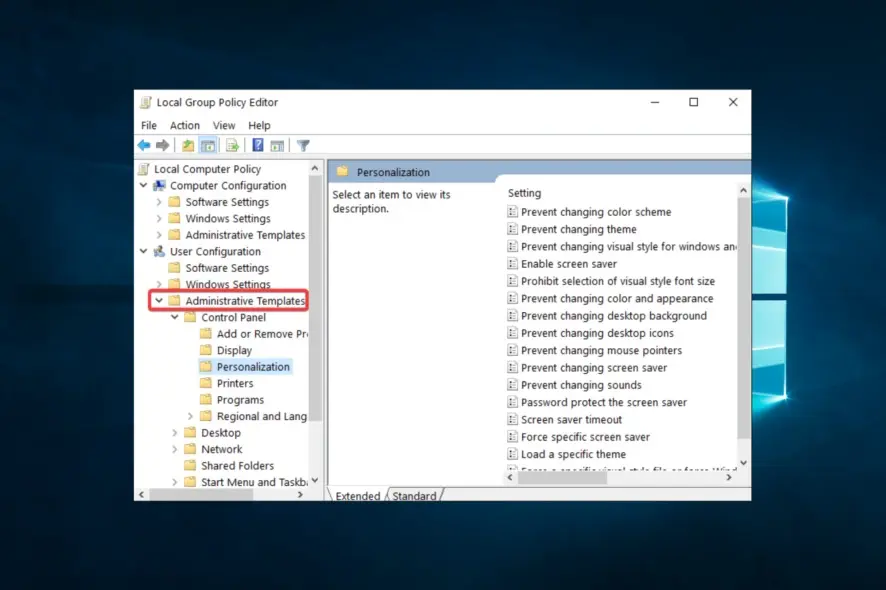
When you open gpedit.msc , you will be greeted by the classic MMC interface divided into two main branches:
1. Computer Configuration
- Rules that apply to the entire computer, regardless of which user is logged in.
- Typical categories:
- Software Settings
- Windows Settings
- Administrative Templates
2. User Configuration
- Rules that apply only to specific user accounts.
- Typical categories:
- Software Settings
- Windows Settings
- Administrative Templates
Navigation:
On the left side there is a tree (Console Tree) with categories and subcategories, while the central part displays the available policies and their description. Each policy can be in one of three states:
- Not Configured
- Enabled
- Disabled
Administrative Templates are the most important part for advanced configuration, as they contain hundreds of rules for customizing Windows, security, networking, applications, and more.
Practical examples and common policies (applications)
The Group Policy Editor allows you to implement a wide range of policies, from basic restrictions to advanced security and automation tasks. Here are some of the most common and useful examples:
Usage examples:
- Restricting access to Control Panel and Settings app:
Prevents users from changing critical system settings. - Block access to the command line (CMD):
Strengthens security by preventing potentially dangerous scripts from running. - Software Installation Prevention:
Prevents users from installing unknown or malicious programs. - Disable automatic driver updates:
Allows administrators to control hardware driver updates. - Remove OneDrive completely:
Turns off OneDrive integration for users who don't use it. - Restricting the use of USB drives and external devices:
Prevents data leakage or malware infection via external devices. - Customize Start menu notifications and behavior:
Reduces distractions and optimizes the user experience. - Automatically run scripts at logon, shutdown, or system startup:
Automate tasks like backups, cleanup, or environment configuration. - Applying BitLocker Encryption via GPO:
Centrally enable and configure BitLocker on all devices on the network to protect data. - Manage updates and security policies:
Standardizes security settings, password requirements, account lockouts, and more.
These policies can be applied locally or centrally via an Active Directory infrastructure, enabling consistency and security across the entire organization.
Advanced features and administrative templates (ADMX/ADML)
Administrative Templates are XML files (.admx and .adml) that extend the capabilities of the Group Policy Editor by adding new rules and options, especially for new versions of Windows or specific applications (e.g. Microsoft Office, Edge, Chrome).
Key features:
- Centralized repository (Central Store):
In domain environments, templates are stored in SYSVOL\domain\Policies\PolicyDefinitions, which allows all administrators to access the same policies. - Updates and compatibility:
Microsoft regularly releases new ADMX packages for each major version of Windows (e.g. Windows 11 25H2), including new policies for AI features, security, application management, and more 202122 . - Adding new templates:
Download the latest ADMX packages from Microsoft's site, copy them to the PolicyDefinitions folder and they will automatically be available in the GPO editor. - Local and domain deployment:
Templates can be used both on local computers (C:\Windows\PolicyDefinitions) and in domain environments.
Examples of new policies in Windows 11 25H2:
- Control AI function (Copilot, Recall)
- Remove preinstalled Store apps
- Advanced security settings for printing and networking
- Managing widgets and the Start menu.
For advanced administration, it is recommended to regularly update ADMX templates and use a central repository so that all administrators have access to the latest policies and capabilities.
Group Policy Objects (GPO): The difference between GPO and local policies
A Group Policy Object (GPO) is a centralized set of rules that can be applied to multiple computers and users within an Active Directory domain. Unlike local policies (Local Group Policy), which apply only to a single computer, GPO allows for mass and consistent management of settings across all devices on a network.
Key differences:
| Feature | Local Politics (LGPO) | Group Policy Object (GPO) |
|---|---|---|
| Extent | Only one computer | Multiple computers and users on a network |
| Management | Local, manual | Centralized, via AD |
| Application | No replication | Automatic replication and inheritance |
| Priority | Lowest (overlaps GPO) | Higher priority, overrides LGPO |
| Administration | gpedit.msc | GPMC, MMC, PowerShell, skripte |
Application hierarchy:
- Local politics
- Site policy
- Domain policy
- OU (Organizational Unit) policy
In case of a conflict, the rule closest to the object (e.g., user or computer) takes precedence, unless the GPO is marked as “Enforced”.
GPOs allow for centralized, secure, and efficient administration of large networks, while local policies are used for individual or isolated cases.
Management consoles and tools: GPMC, MMC, AGPM, MDOP
For advanced group policy management, Microsoft offers a number of tools and consoles:
1. GPMC (Group Policy Management Console)
- Central tool for creating, editing, linking, backing up, restoring, and migrating GPOs in domain environments.
- It enables inheritance overview, filtering, results simulation (RSoP), reports, and delegation of rights.
2. MMC (Microsoft Management Console)
- An environment for adding various snap-in tools, including Group Policy Object Editor, Active Directory Users and Computers, Event Viewer, and others.
- Allows you to create custom consoles for specific tasks.
3. AGPM (Advanced Group Policy Management)
- Dio Microsoft Desktop Optimization Pack (MDOP).
- It enables versioning, change control, approval, and rollback of GPOs.
- Crucial for large organizations with multiple administrators and complex environments.
4. MDOP (Microsoft Desktop Optimization Pack)
- A collection of advanced management tools, including AGPM, App-V, MBAM, and more.
For local administration, gpedit.mscis sufficient, but for network and domain administration, it is recommended to use GPMC and advanced tools.
Applying policies to specific users or groups (MMC snap-in procedure)
For granular control, it is possible to apply policies to specific users or groups using MMC and the Group Policy Object Editor snap-in.
Procedure:
- Start MMC:
Windows + R> typemmc> Enter
- Add a snap-in:
- File > Add/Remove Snap-in > Group Policy Object Editor > Add
- Select a user or group:
- In the wizard, select "Browse", switch to the "Users" tab and select the desired user or group (e.g. Non-Administrators)
- Configure rules:
- Edit policies as usual, but they will only apply to selected users/groups
- Save the console:
- File > Save As, create a shortcut for quick access
This method is useful for specific scenarios where you want different rules for administrators, guests, or specific user groups.
Accessibility and Solutions for Windows Home: How to Enable gpedit.msc
Windows Home users are often frustrated by the lack of gpedit.msc , but there are unofficial methods for enabling it. Although these methods are not supported by Microsoft, they are widely used and functional 1567 .
The most common methods:
- Download and run the gpedit-enabler.batscript:
- Download the script from a trusted site (e.g. TechNet)
- Run as administrator
- Wait for the installation to complete.
- Restart your computer.
- Type
gpedit.mscin the Run dialog
- Copying the required files from SysWOW64 to System32 (for 64-bit systems):
- Copy the folders
GroupPolicy,GroupPolicyUsersand the filegpedit.mscfromC:\Windows\SysWOW64toC:\Windows\System32 - Assign administrative permissions where necessary
- Copy the folders
- Manually creating the .msc file and installing via PowerShell or CMD:
- Create a batch script that uses DISM to install required packages from Windows components
Caution:
These methods are not officially supported and may cause problems or limitations. It is recommended to back up your system before attempting to install gpedit.msc on Home edition .
Security implications and recommendations when using Group Policy Editor
Group Policy Editor is an extremely powerful tool, but improper use can lead to serious problems, including loss of access, system instability, or security vulnerabilities .
Recommendations for safe use:
- Always read the description of each policy before making changes.
- Test changes on a test computer or in an isolated environment
- Document all changes for easy rollback
- Use the "Not Configured" option if you are unsure of the effect of the rule.
- Back up GPOs and local policies
- In enterprise environments, enforce policies via Active Directory and maintain backups of critical configurations
- Restrict access to gpedit.mscto administrators only
- Track changes and results through GPMC reports and RSoP tools
Incorrectly configured policies can cause loss of functionality, security holes, or even disable access to the system. Caution and planning are key!
Troubleshooting and common errors (e.g. "Windows cannot find gpedit.msc")
Users often encounter problems when using or opening gpedit.msc . Here are of the most common errors and solutions :
Common errors and solutions:
- "Windows cannot find gpedit.msc":
- Check if you are using Pro/Enterprise/Education edition
- If you are on Home edition, use one of the methods to enable gpedit.msc
- Lack of administrator rights:
- Run gpedit.msc as administrator
- Changes do not apply:
- Run
gpupdate /forcein CMD - Restart your computer.
- Run
- Corrupted or missing files:
- Run
sfc /scannowto repair system files
- Run
- Conflict between local and domain policies:
- Check the policy application hierarchy (GPO takes precedence over LGPO)
- Incorrect inheritance or filtering:
- Check inheritance and security filtering settings in GPMC
For advanced diagnostics, use the Resultant Set of Policy (RSoP) or Group Policy Modeling tool in GPMC.
Configuration examples for business environments (Active Directory, OU, GPO application)
In business and education environments, GPOs are essential for centralized management and security. Here is a typical scenario for deploying GPOs in an Active Directory environment:
Steps to apply a GPO to a specific OU (Organizational Unit):
- Create an OU in Active Directory: E.g. "Computers - Sales"
- Create a new GPO in GPMC: Give it a descriptive name (e.g. "USB Device Ban - Sales")
- Edit the GPO: Add desired policies (e.g., prohibit access to USB drives)
- Link the GPO to the OU: Right click on OU > "Link an Existing GPO..." > Select GPO
- Apply changes: Run
gpupdate /forceon clients or wait for automatic replication - Check the results: Use RSoP or Group Policy Results Wizard
GPOs are inherited recursively to all sub-OUs, unless inheritance is blocked. Security filtering and WMI filters allow for additional granularity .
Automation and Scripting: Running Scripts on Login/Shutdown
One of the powerful features of GPO is the ability to automate tasks through scripts that run at startup, shutdown, logon, or logoff of a user or computer.
Typical scenarios:
- Startup/Shutdown scripts: Automate updates, clean up temporary files, system configuration
- Logon/Logoff script: Mapping network drives, setting up printers, initializing the user environment
Supported formats:
- Batch (.bat, .cmd)
- PowerShell (.ps1)
- VBScript (.vbs)
Procedure for adding a script:
- Create or download a script
- Copy the script to the appropriate folder (e.g. Netlogon for domain scripts)
- In GPMC or gpedit.msc, go to:
- Computer/User Configuration > Policies > Windows Settings > Scripts (Startup/Shutdown ili Logon/Logoff)
- Add the script and, if necessary, parameters
- Apply the GPO and test the script execution
PowerShell scripts offer advanced automation capabilities, but require appropriate Execution Policy settings.
Tips, tricks, and recommendations for administrators and advanced users
- Regularly update ADMX templates to have access to the latest policies and capabilities, especially after major Windows upgrades .
- Use a central repository for ADMX templates in domain environments for consistency.
- Back up GPOs and local policies in a timely manner – backup and restore are supported through GPMC and scripts .
- Test new policies in an isolated environment before applying them to production.
- Document all changes and maintain a record of applied GPOs and their effects.
- Use security filtering and WMI filters for granular policy enforcement.
- Delegate GPO administration for larger organizations, but with strict rights control.
- Regularly check SYSVOL replication and GPO status on all domain controllers.
- Use RSoP and Group Policy Modeling to diagnose and simulate policy results.
- Avoid making changes to the Default Domain Policy and Default Domain Controllers Policy – always create new GPOs for custom needs.
Latest changes and updates related to Windows (Windows 11 25H2 and hotpatch)
Windows 11 25H2 brings significant news in the area of Group Policy, including 42 new settings for managing AI features, security, applications, and user experience.
Key news:
- Copilot and Recall AI function control: Ability to disable or customize AI components on Copilot+ PCs
- Removing preinstalled Store apps: New policy for automatic removal of unwanted apps in Enterprise and Education editions
- Advanced security policies for printing and networking: TLS/SSL for IPP printers, advanced NTLM logs, SMB over QUIC controls
- Improvements in backup and initial device setup: Policies for Windows Backup and Updates during OOBE phase
- Updated ADMX templates and reference XLSX files: Available for download and deployment to the central repository
Hotpatch updates allow the application of security and functional patches without the need to restart the device, which increases system availability and security in business environments.
References
- Group Policy Editor in Windows: Access, Use, and Configuration. https://bs.windowsnoticias.com/Uređivač-grupnih-pravila-u-Windowsu-Pristup--upotreba-i-konfiguracija/
- Group Policy Editor: What is it? General terms and capabilities.https://hr.atomiyme.com/group-policy-editor-sto-je-to-opci-pojmovi-i-mogucnosti/
- Defining Group Policy - Dalibor Katić.https://www.dalibor-katic.com/2024/04/20/definiranje-group-policyja/
- How To Use Microsoft Management Console (MMC) Snap-In.https://www.ituonline.com/how-to/how-to-use-microsoft-management-console-mmc-snap-in/
- Configure Microsoft Group Policy (GPEDIT.MSC) in Windows 10.https://www.pchardwarepro.com/bs/Konfigurišite-grupne-politike-Microsoft-GPedit-MSC-u-Windowsu-10/
- Configure Microsoft Group Policies (GPEDIT.MSC) in the system ....https://www.pchardwarepro.com/hr/Konfigurirajte-grupne-politike-Microsoft-GPedit-MSC-u-sustavu-Windows-10/
- How to create a "Local" Group Policy Editor for Windows 10 + 11 devices.https://community.spiceworks.com/t/how-to-create-a-local-group-policy-editor-for-windows-10-11-devices/1014427
- How to access and configure the Windows Group Policy Editor.https://mundobytes.com/hr/Kako-pristupiti-i-konfigurirati-udeļivac-grupnih-pravila-u-sustavu-Windows-korak-po-korak/
- How to install or update administrative group policy templates (ADMX).https://hr.101-help.com/kako-instalirati-ili-azurirati-administrativne-predloske-pravila-grupe-admx-f6475cc9eb/
- How to configure Group Policies (GPO) in Windows step by step.https://mundobytes.com/hr/Konfiguriranje-GPO-grupnih-pravila-u-sustavu-Windows/
- How to block or restrict access to a specific drive in Windows.https://mundobytes.com/hr/Blokirajte-ili-ograničite-pristup-oderenom-disku-u-sustavu-Windows/
- How to Disable or Enable USB Drives in Windows using Group Policy.https://woshub.com/how-to-disable-usb-drives-using-group-policy/
- Block USB Drives Using Group Policy - CloudInfra.https://cloudinfra.net/block-usb-drives-using-group-policy/
- Using Startup, Shutdown, Logon, and Logoff Scripts in Group Policy.https://learn.microsoft.com/en-us/previous-versions/windows/it-pro/windows-server-2012-R2-and-2012/dn789196(v=ws.11
- How to Configure GPO Scripts for Login and Startup Tasks | V2 Cloud.https://v2cloud.com/blog/how-to-configure-gpo-scripts-for-login-and-startup-tasks
- Running PowerShell Startup (Logon) Scripts Using GPO.https://woshub.com/running-powershell-startup-scripts-using-gpo/
- Configure BitLocker | Microsoft Learn.https://learn.microsoft.com/en-us/windows/security/operating-system-security/data-protection/bitlocker/configure
- Using Group Policy to configure BitLocker - Specops Software.https://specopssoft.com/blog/group-policy-configure-bitlocker/
- Group Policy - uvod | sistemac.srce.hr.https://sistemac.srce.hr/node/98
- New Windows 11 25H2 Group Policy settings - 4sysops.https://4sysops.com/archives/new-windows-11-25h2-group-policy-settings/
- Administrative Templates (.admx) for Windows 11 2025 Update (25H2) - V2.0.https://www.microsoft.com/en-my/download/details.aspx?id=108428
- Windows 11 25H2 Group Policy Templates and Reference Spreadsheet Now Available - Winaero.https://winaero.com/windows-11-25h2-group-policy-templates-and-reference-spreadsheet-now-available/
- Are GPOs applied recursively to the substructure of OUs? - EITCA Academy.https://hr.eitca.org/Cybersecurity/eitc-je-administracija-Windows-poslužitelja-wsa/administracija-sustava-u-Windows-poslužitelju/stvaranje-i-upravljanje-objektima-grupne-politike/Jesu-li-GPOovi-rekurzivno-primijeni-na-podstrukturu-od-ous/
- How to Link a GPO to an OU: Step-by-Step Guide | Zecurit.https://zecurit.com/knowledge-hub/link-gpo-to-ou/
- Installing the Group Policy Management Console in Windows 10, 8, or 7.https://www.pchardwarepro.com/bs/Instaliranje-konzole-za-upravljanje-grupnim-politikama-u-Windowsu-10--8-ili-7/
- Back Up and Restore Group Policy in Windows | Microsoft Learn.https://learn.microsoft.com/en-us/windows-server/identity/ad-ds/manage/group-policy/group-policy-backup-restore
- Group Policy Object Editor | Windows security encyclopedia.https://www.windows-security.org/4f55b8f87f985096257a37fe5bab8c01/group-policy-object-editor
- Copying Group Policy Object Editor - Non Administrators.https://learn.microsoft.com/en-us/answers/questions/4181059/copying-group-policy-object-editor-non-administrat
- Backup and Restore Local Group Policy Settings in Windows 10.https://www.tenforums.com/tutorials/79994-backup-restore-local-group-policy-settings-windows-10-a.html

Leave a comment
Your email address will not be published. Required fields are marked *