
 AI
AI  Analytics
  Cloud
Cloud  Office
  Stock
Stock  Disk
Disk  Dev
Dev  Forms
Forms  Crypto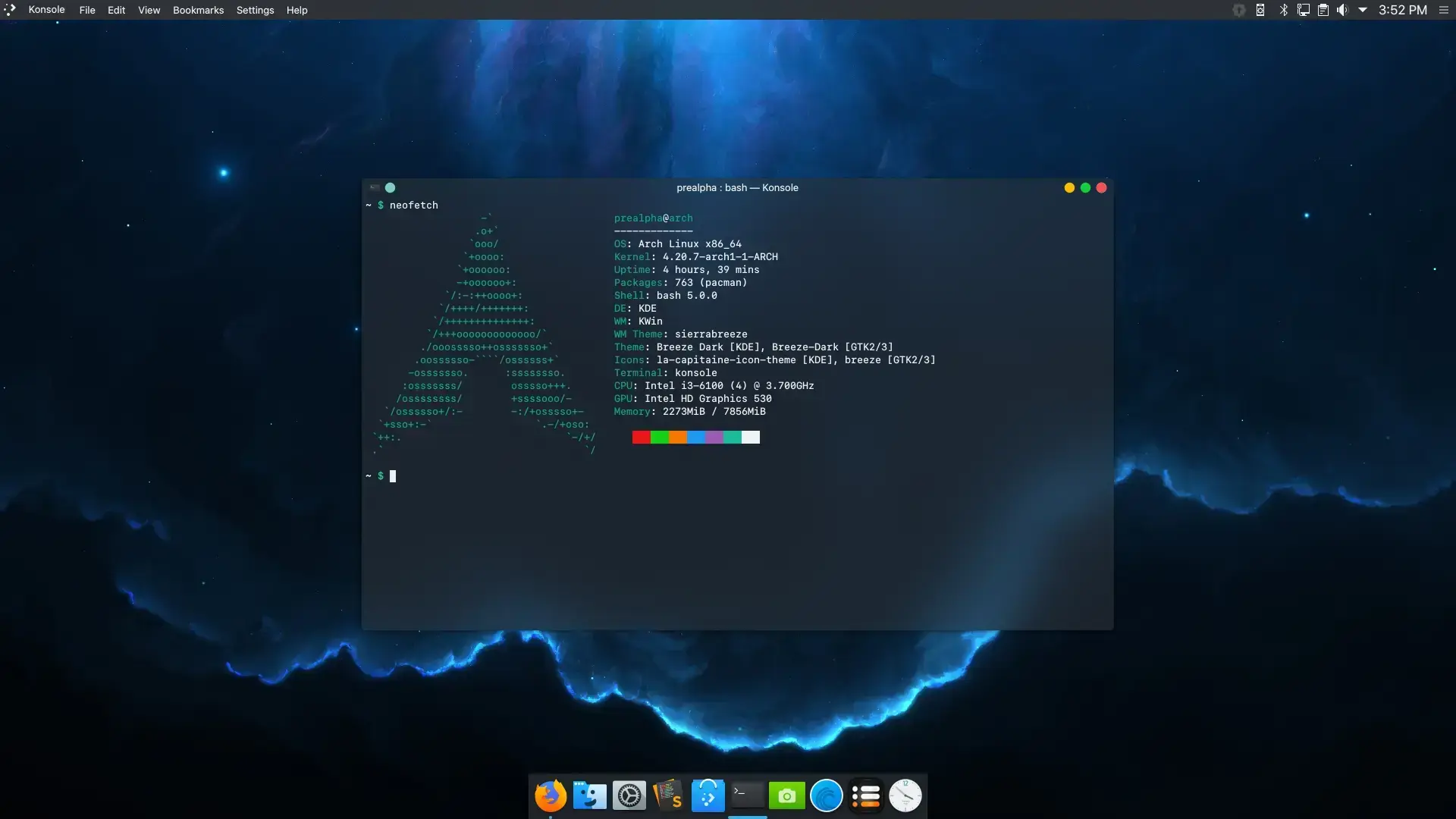
“Arch isn’t just a distro—it’s a philosophy of control and simplicity. But the true power lies in what comes after the installation.”
Arch Linux is beloved by power users and professionals alike for its elegance, simplicity, and unparalleled control. However, installing Arch is merely the beginning. To truly harness its potential—whether for development, content creation, gaming, or streaming—proper optimization post-installation is critical.
In this guide, we will walk you through an expertly curated set of steps designed to optimize performance, improve security, enhance usability, and polish your Arch Linux setup into a robust and productive system.
1. System Update and Mirror Optimization
Ensure your system is synchronized and using the fastest mirrors available:
sudo pacman -Syu
sudo pacman -S reflector
sudo reflector --latest 10 --sort rate --save /etc/pacman.d/mirrorlist
Then update once more:
sudo pacman -Syyu
2. Install Key Utilities
Every modern Arch setup benefits from essential packages:
sudo pacman -S base-devel linux-headers neofetch htop git wget curl unzip zip
Enable colorful output and verbose package listings in pacman.conf for a better experience:
sudo nano /etc/pacman.conf
# Uncomment:
# Color
# VerbosePkgLists
3. AUR Access with Yay
To unlock the community-driven Arch User Repository:
cd /opt
sudo git clone https://aur.archlinux.org/yay.git
sudo chown -R $USER:$USER yay
cd yay
makepkg -si
Now you can install packages from AUR with a single command:
yay -S google-chrome visual-studio-code-bin
4. Improve Boot Time and Kernel Performance
Enable Parallel Booting:
sudo nano /etc/mkinitcpio.conf
# Add 'compress' and optimize hooks
Rebuild initramfs:
sudo mkinitcpio -P
Enable systemd-analyze to troubleshoot boot time:
systemd-analyze
systemd-analyze blame
Use systemctl disable for unnecessary services.
5. Configure Power Management (Especially for Laptops)
Install tlp for battery life optimization:
sudo pacman -S tlp
sudo systemctl enable tlp
sudo systemctl start tlp
For Intel CPUs:
sudo pacman -S intel-ucode
For AMD CPUs:
sudo pacman -S amd-ucode
6. File System and SSD Tweaks
Enable TRIM for SSDs:
sudo systemctl enable fstrim.timer
Consider changing I/O scheduler:
cat /sys/block/sdX/queue/scheduler
You can set mq-deadline or none depending on the drive type.
7. Install a Lightweight and Productive Desktop Environment
Choose your preferred DE based on workflow:
KDE Plasma (feature-rich):
sudo pacman -S plasma kde-applications sddm
sudo systemctl enable sddm
XFCE (lightweight and fast):
sudo pacman -S xfce4 xfce4-goodies lightdm lightdm-gtk-greeter
sudo systemctl enable lightdm
Hyprland or Sway (Wayland-based for enthusiasts):
yay -S hyprland waybar wofi xdg-desktop-portal-hyprland
8. Font and UI Polish
Install essential fonts for better rendering and aesthetics:
sudo pacman -S ttf-dejavu ttf-liberation noto-fonts
yay -S ttf-ms-fonts nerd-fonts-ubuntu-mono
Enable font anti-aliasing and sub-pixel rendering via /etc/fonts/local.conf.
9. Enable Firewall and Security Basics
Activate a simple yet effective firewall with ufw:
sudo pacman -S ufw
sudo ufw enable
sudo ufw default deny
sudo ufw allow ssh
10. Backup, Snapshots and Timeshift
Prepare for emergencies:
yay -S timeshift
sudo timeshift --create
Set up daily snapshot automation for peace of mind.
11. Bonus: Custom Aliases & Shell Improvements
Edit your .bashrc or .zshrc:
alias update='sudo pacman -Syu && yay -Syu'
alias cleanup='sudo pacman -Rns $(pacman -Qtdq)'
alias fetch='neofetch'
Install a powerful shell with syntax highlighting:
sudo pacman -S zsh zsh-autosuggestions zsh-syntax-highlighting
chsh -s /bin/zsh
Arch Linux, in its raw form, gives you the building blocks. But it’s only with thoughtful post-installation optimization that your system truly comes alive—tailored to your exact needs, refined for performance, and crafted for productivity.
Whether you are a developer, designer, gamer, or streamer, this guide provides the strategic edge you need to transform your Arch install into a powerful workstation.

Leave a comment
Your email address will not be published. Required fields are marked *